

Windows users have certain expectations when it comes to installing software. They typically think the software should be downloadable and installable via a wizard-type interface. These wizards are created using “installer software”. While there aren’t really any Python packages available for creating installers, there are some nice free applications that you can use.
Two of the most popular are:
Inno Setup - http://www.jrsoftware.org/isinfo.php
For this chapter, you will be using Inno Setup. You will also be learning about the following topics:
Installing Inno Setup
Creating an Installer
Testing Your Installer
Let’s get started by learning to install the installer!
Installing Inno Setup
Installing Inno Setup is pretty simple. You will need to go to the following URL:
Then go to the Download Inno Setup link and choose where you want to download the application from. After downloading Inno Setup, double-click the installer to install it on your system.
Now that you have Inno Setup installed on your Windows machine, you can create your own installer!
Creating an Installer
The first step in creating an installer is to choose what you want to install. For this example, you will use the image viewer executable that you created in the previous chapter.
Inno Setup makes creating an installer really straightforward. It uses a wizard that walks you through it step by step. To get started, run Inno Setup and you should see a screen that looks like this:
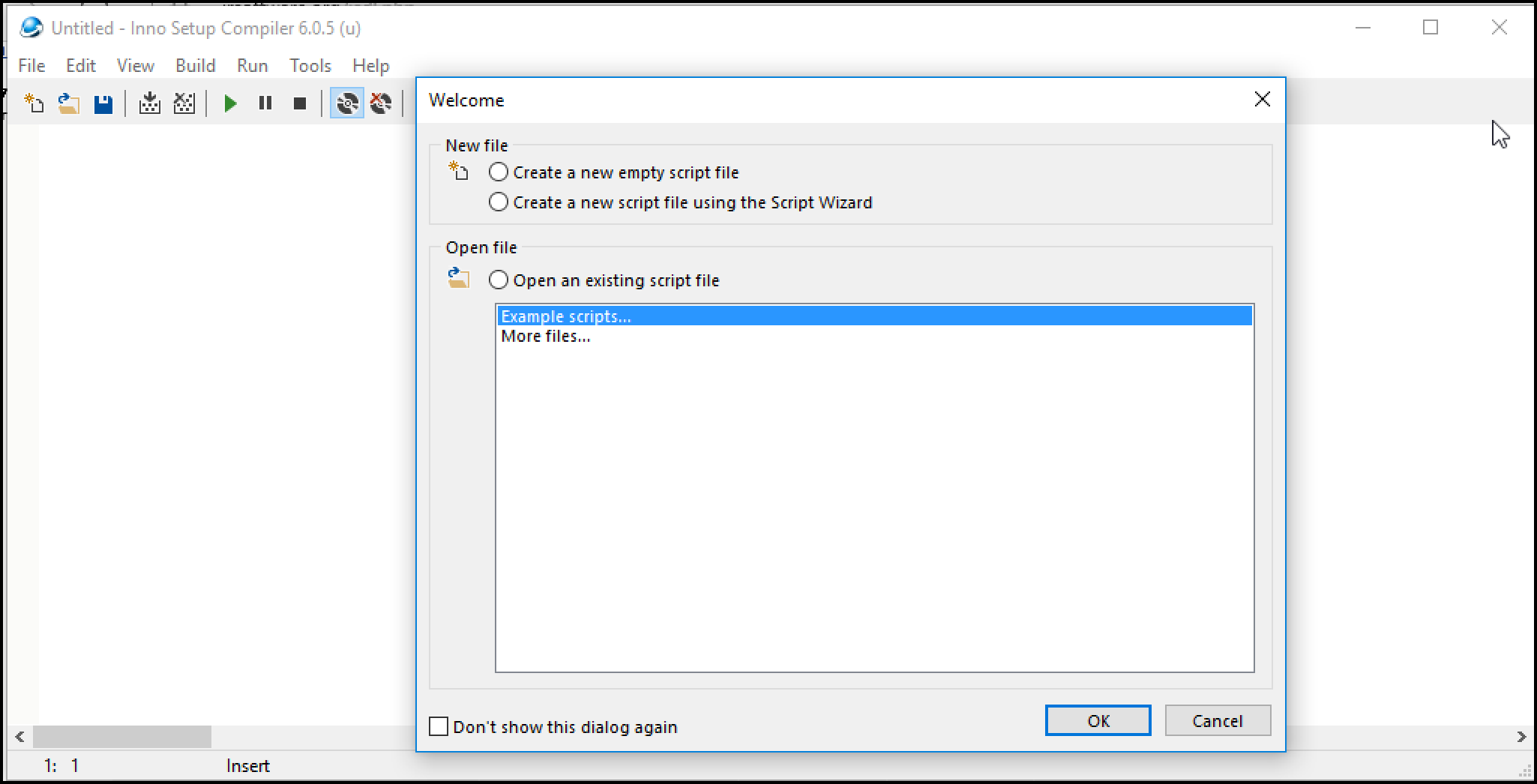
While Inno Setup defaults to opening an existing file, what you want to do is choose the second option from the top: “Create a new script file using the Script Wizard”. Then press OK.
You should now see the first page of the Inno Setup Script Wizard:
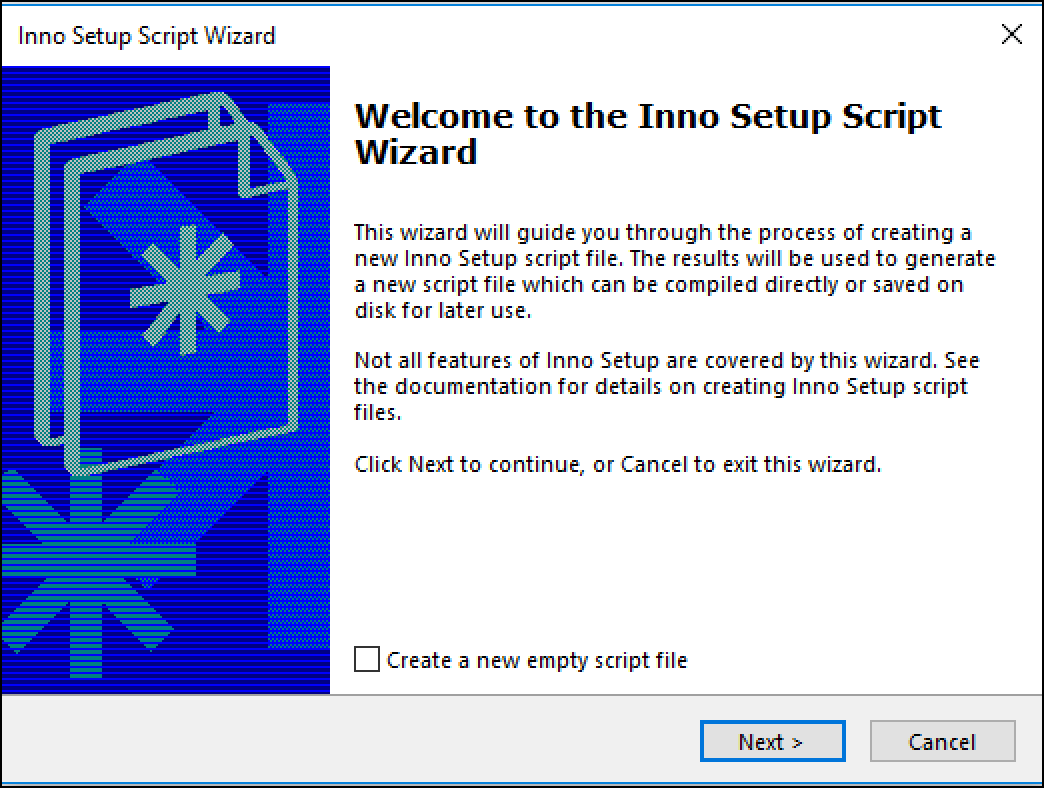
Go ahead and hit Next here. You will now be on the Application Information page:
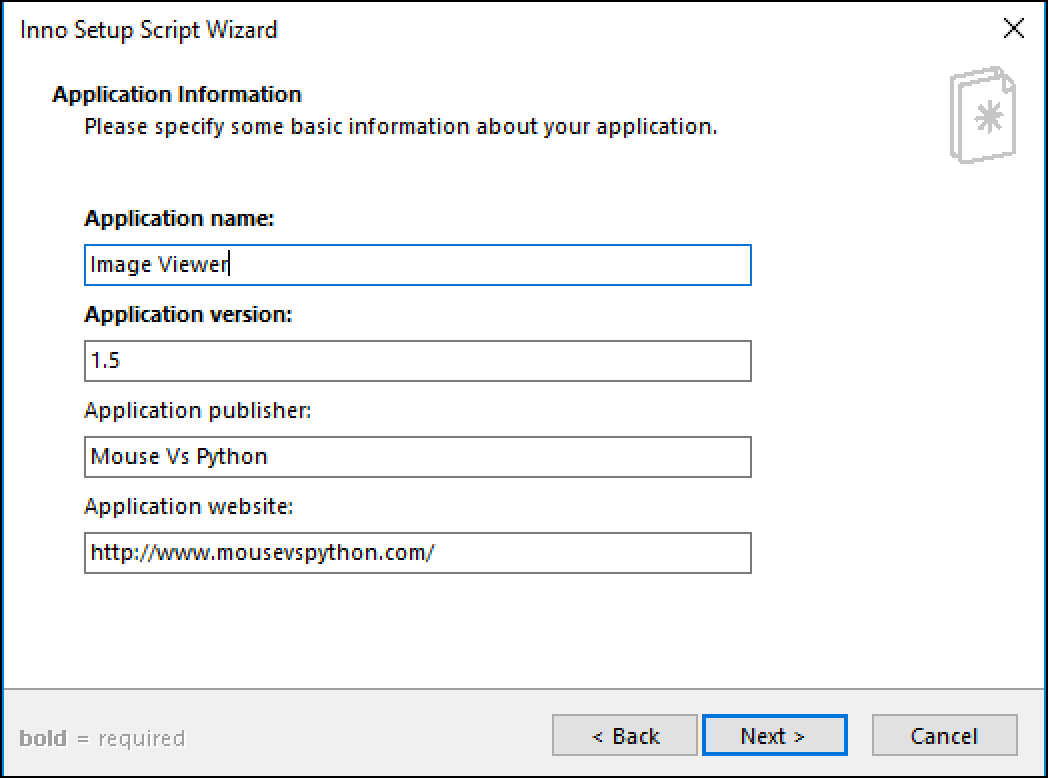
This is where you enter your application’s name, its version information, the publisher’s name and the application’s website. You can fill it out to match the screenshot or customize it to your specifications.
Once you are finished, press Next and you should see the following:
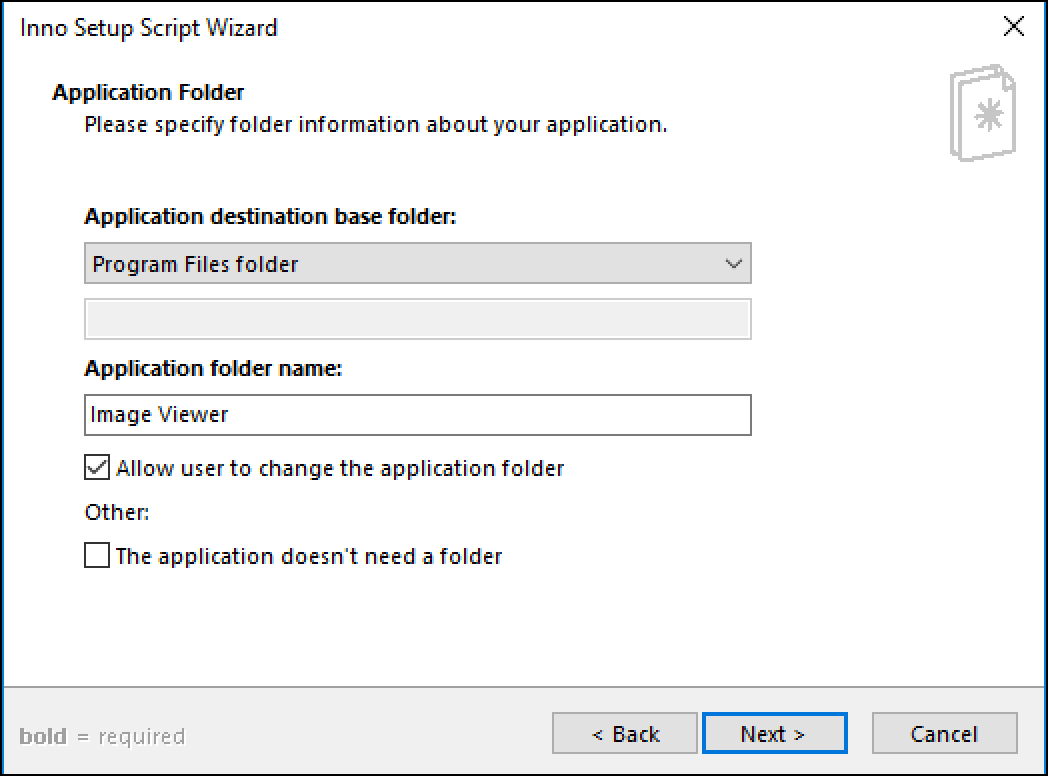
This page of the wizard lets you set the application’s installation directory. On Windows, most applications install to Program Files, which is also the default here. This is also where you set the folder name for your application. This is the name of the folder that will appear in Program Files. Alternatively, you can check the box at the bottom that indicates that your application doesn’t need a folder at all.
You can edit this page if you don’t like the defaults. Otherwise, press Next to continue:
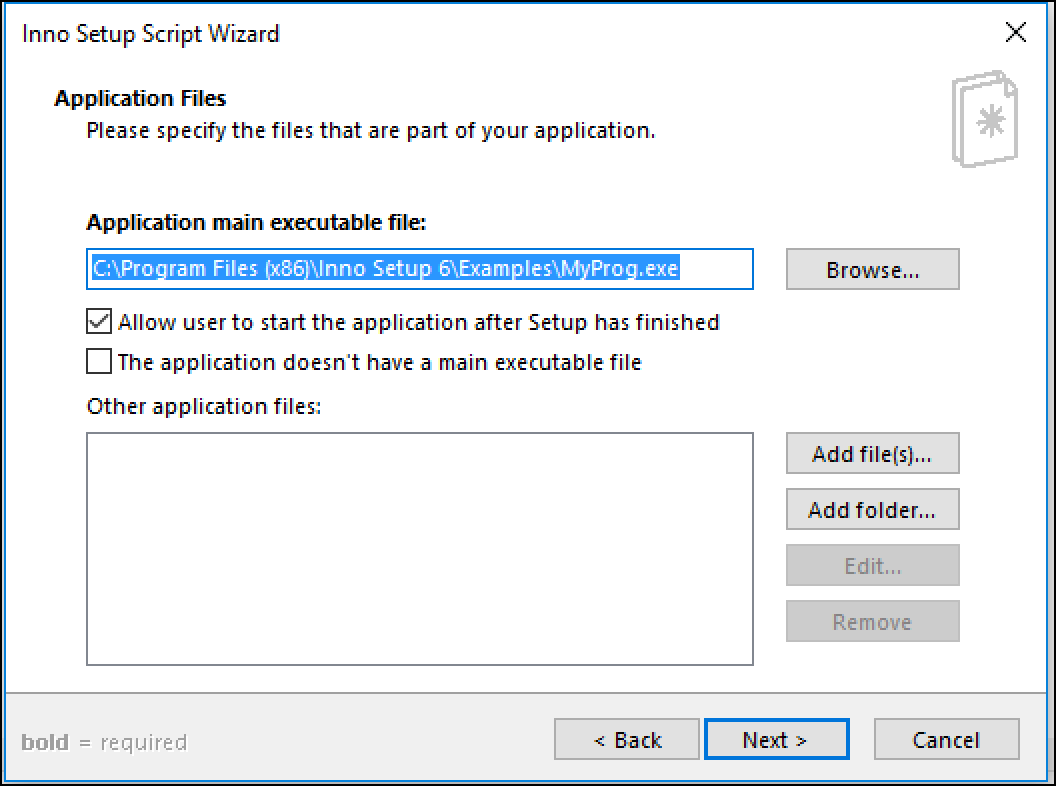
Here is where you will choose the main executable file. In this case, you want to choose the executable you created with PyInstaller. If you didn’t create the executable using the --onefile flag, then you can add the other files using the Add file(s)... button. If your application requires any other special files, like a SQLite database file or images, this is also where you would add them.
Note: Remember on Windows 10, if you used --onefile, then you also need to sign the file or it will be marked as malware by Windows Defender.
By default, this page will allow the user to run your application when the installer finishes. Many installers do this, so it’s expected by most users.
When you are done, click Next to go to the Shortcuts page:
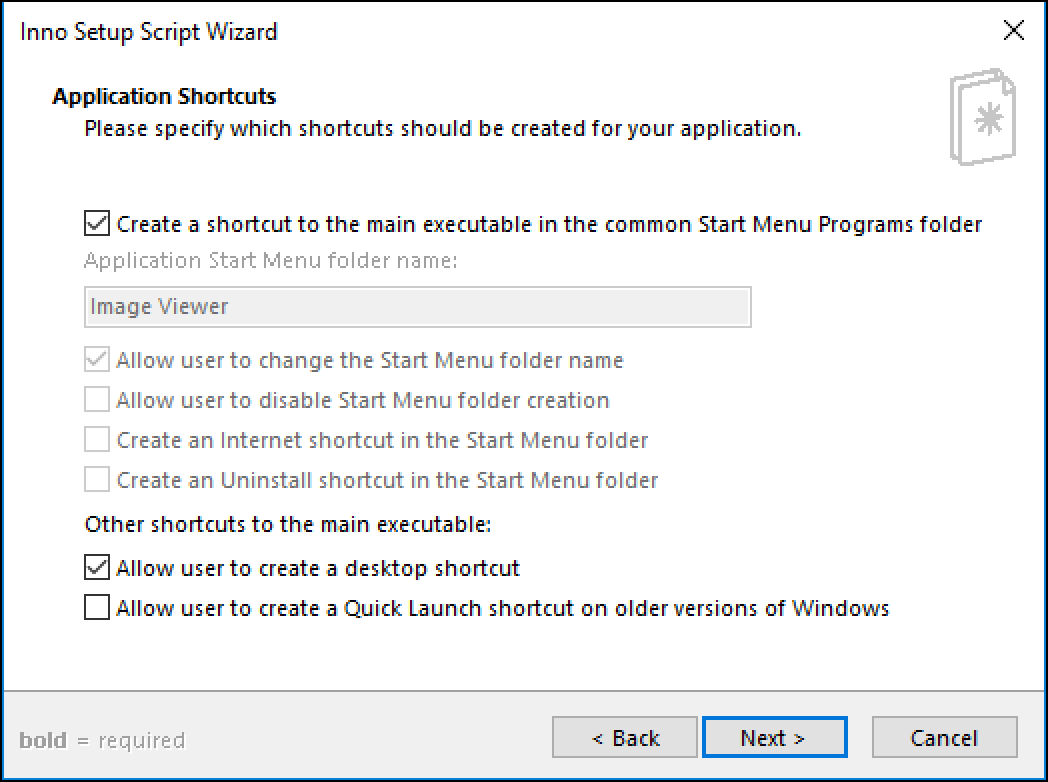
This is the Application Shortcuts page and it allows you to manage what shortcuts are created for your application and where they should go. The options are pretty self-explanatory. You can usually use the defaults, but you are welcome to change them however you see fit.
Once you are finished configuring the shortcuts, press Next to continue:
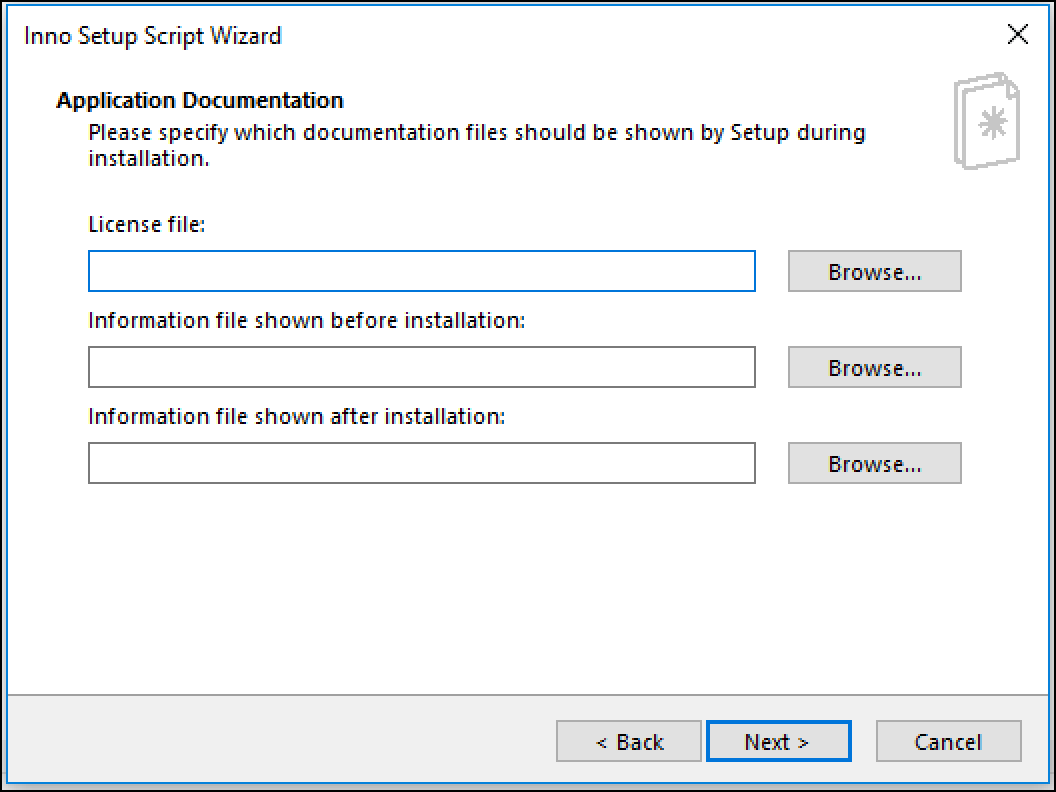
The Documentation Page of the wizard is where you can add your application’s license file. For example, if you were putting out an open source application, you can add the GPL or MIT or whatever license file you need there. If this were a commercial application, you would add your End-User License Agreement (EULA) file here. You can also add some extra information before and after the installation here too!
All these files are optional. If you don’t want to apply a license or add before-and-after instructions, you can just click Next.
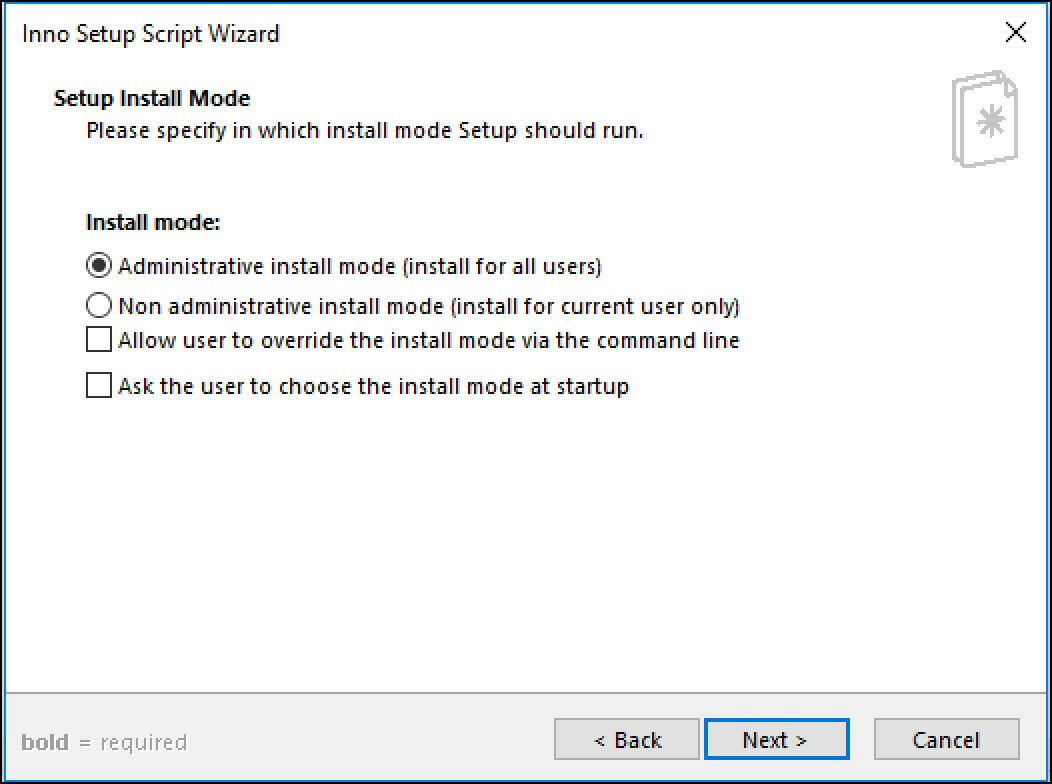
This page specifies which install mode to use when installing your application. The default is to install for all users, which is probably what you want. The other options are pretty self-explanatory. You can play around with them or read more about them in Inno Setup's documentation. Once you're done with this page, go on to the next one.
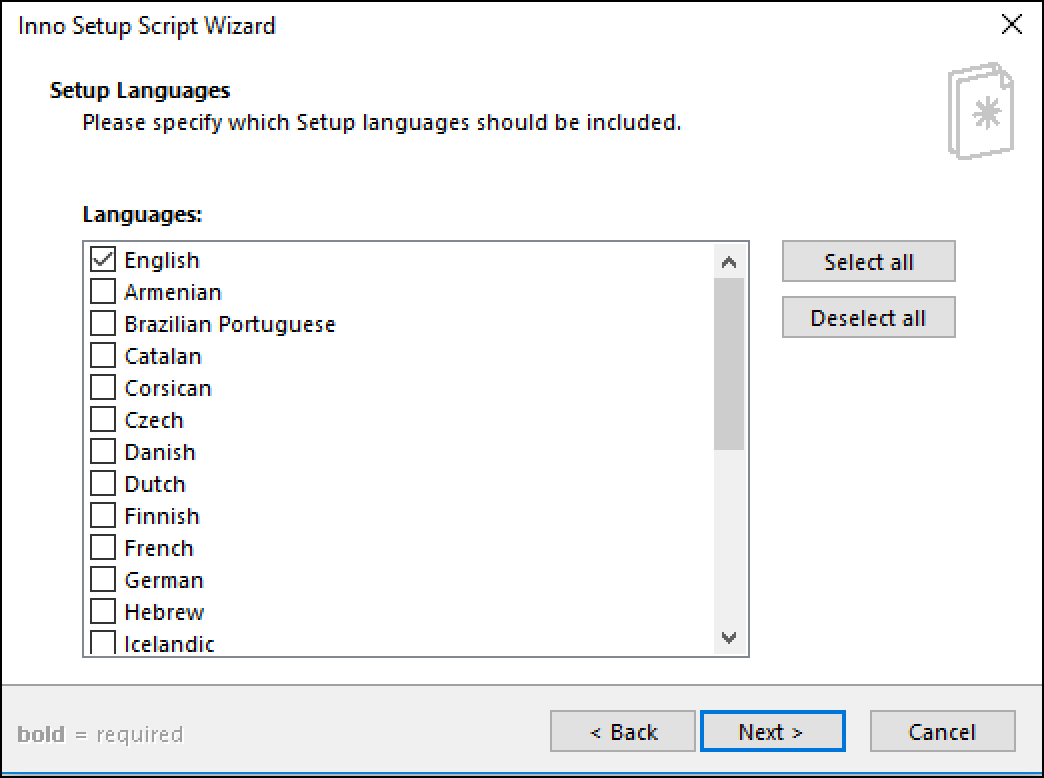
Here you can set up which languages should be included in your installer. The default is English, but Inno Setup supports many others. Feel free to modify this as needed before continuing on.
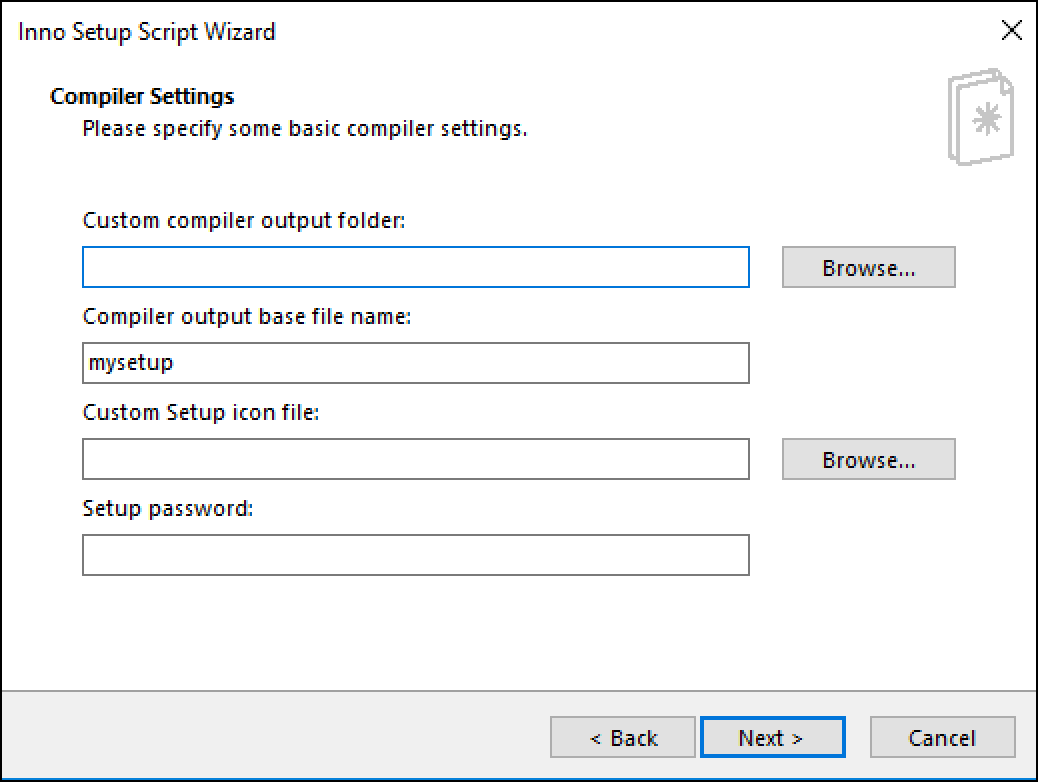
The Compiler Settings page lets you name the output setup file, which defaults to simply setup. You can set the output folder here, add a custom setup file icon and even add password protection to the setup file. I usually just leave the defaults alone, but this is an opportunity to add some branding to the setup if you have a nice icon file handy.
The next page is for the preprocessor:
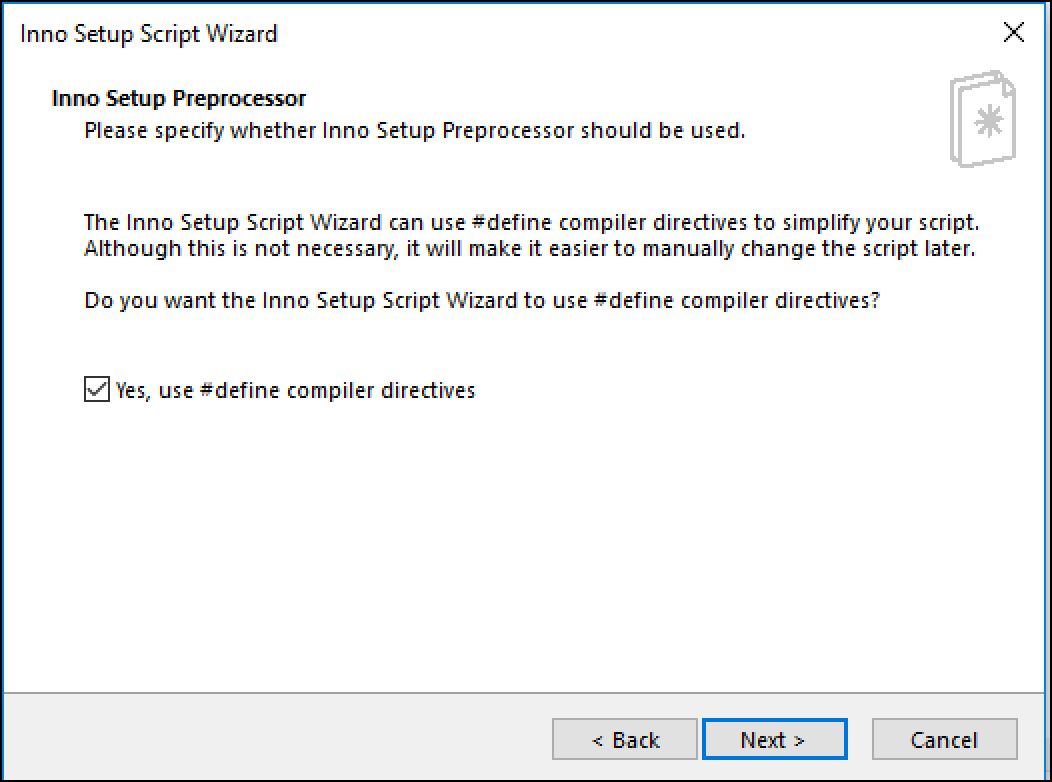
The preprocessor is primarily for catching typos in the Inno Setup script file. It basically adds some helpful options at compile time to your Inno Setup script.
Check out the following URL for full details:
When you press Next you will reach the final page of the wizard:
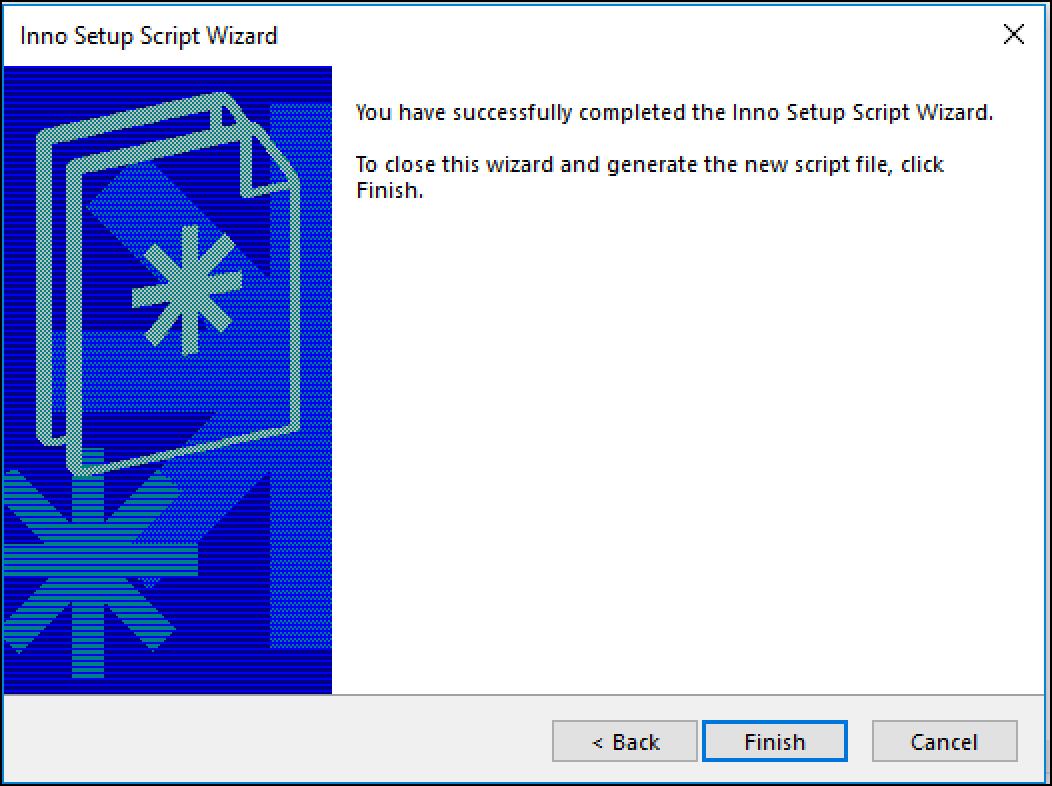
There's nothing to do here but press Finish, Back or Cancel. Go ahead and complete the wizard by pressing Finish:
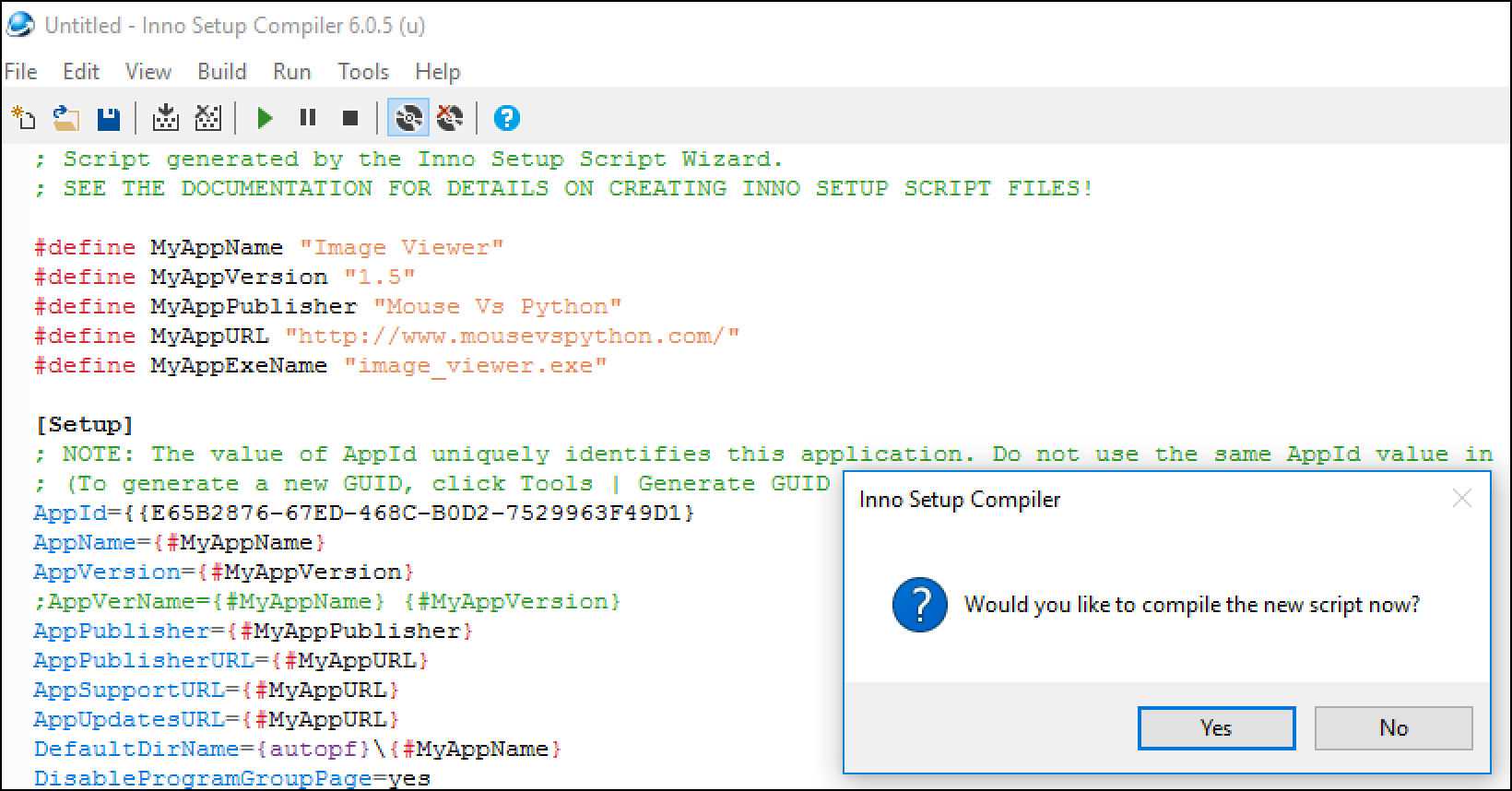
Inno Setup now asks you if you would like to compile the script. This means that Inno Setup has created a build script for your installer and would like your permission to run that script to actually create your installer executable. Press Yes to continue.
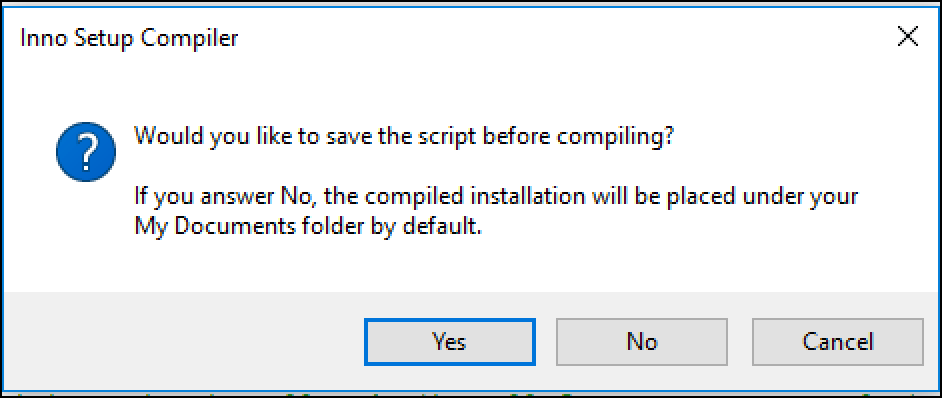
This dialog asks if you would like to save the Inno Setup compiler script before running it. That is certainly a good idea as you don’t want to lose any of your changes. Press Yes to save it and then choose what to name the script and where to save it.
Once the script is saved, it will create your installer. At this point you should have an installer created! You can edit the script file in any text editor, although the Inno Setup editor is probably best as it has its own syntax highlighting built-in to it.
Testing Your Installer
Now that you have an installer, it’s a good idea to test it. When you finish building the installer with Inno Setup, it will automatically run the installer for you. You can choose to install your application now and verify that it launches correctly.
You may see an error when you attempt to run your application. That usually means that you forgot to include some file or other in your installer. Occasionally you will get errors that are related to permission issues. You can solve the first issue by comparing what files were installed to the ones in your dist folder that you created with PyInstaller. If there are any missing, you can run Inno Setup and go through the wizard again or you can modify the script file yourself directly.
Permission issues are more difficult and will take some trial and error to figure out. You will likely need to research what exactly the problem is to figure out how to solve it.
Of course, occasionally there’s something wrong with the executable itself. Then you’ll have to debug it before you can repackage it into an installer.
Wrapping Up
Creating an installer for your Windows users is a good idea. Having an installer gives the users confidence in your program. Installers add that extra bit of polish and they make it easier to make sure all the files you need are installed with your application.
In this chapter, you learned about:
Installing Inno Setup
Creating an Installer
Testing Your Installer
You should spend some time reading the Inno Setup documentation and then trying it out on some of your own creations. You will quickly find that Inno Setup is intuitive and you’ll soon have some installers of your own.