

Log messages are simply strings. If you want to include additional information, you must format the message. But what does that mean anyway?
When you look at logs, you usually try to determine what went right and wrong with your application. To do that, you need more than just a message.
Common examples of additional useful information include the following:
A timestamp
A line number
The log level
The filename
The module name
You could include other bits of information as well. You need to find a balance between how verbose you want your logs to be and how pithy you want them to be. You or your team will be reading them, so you want them to be informative.
In this article, you will cover these topics:
What is a logging formatter?
LogRecords
LogRecord attributes
Formatting your logs
Formatting the date and time
Using parameters
Soon you’ll be formatting your logs like a pro.
Let’s get started!
What is a Logging Formatter?
When it comes to creating logs in Python, you need three items:
The logger object
The handler object
The formatter object
In a previous article, you learned about the logger and handler objects. Now, it’s time to learn how to create a formatter object.
If you look at the Python documentation, you will see the following definition of a Formatter object:
logging.Formatter(fmt=None,
                  datefmt=None,
                  style=’%’,
                  validate=True, *,
                  defaults=None)
When you create a Formatter object, most examples will only show the fmt parameter getting used. You’ll probably never even need to mess with the rest of those parameters.
However, it’s good to know what they are for. So here is a brief definition of each of them from the Python documentation:
fmt - A format string using the given style param for the logged output
datefmt - A format string using the given style for the date/time portion of the logged output
style - Uses one of
'%','{'or'$'which determines how the format string will be merged; these formatters are then used by printf-style String Formatting (%), str.format() ({) or string.Template ($).validate - When
True(default), an incorrectfmtandstylewill cause aValueErrorto be raiseddefaults - A dict[str, Any] of default values that you will use in custom fields
As mentioned, other than fmt, you probably won’t use any of the other parameters listed above except, perhaps datefmt.
Let’s look at an example of using a logging Formatter now. Open up your favorite Python IDE or text editor and create a new file named hello_formatter.py.
Then enter the following code into your new file:
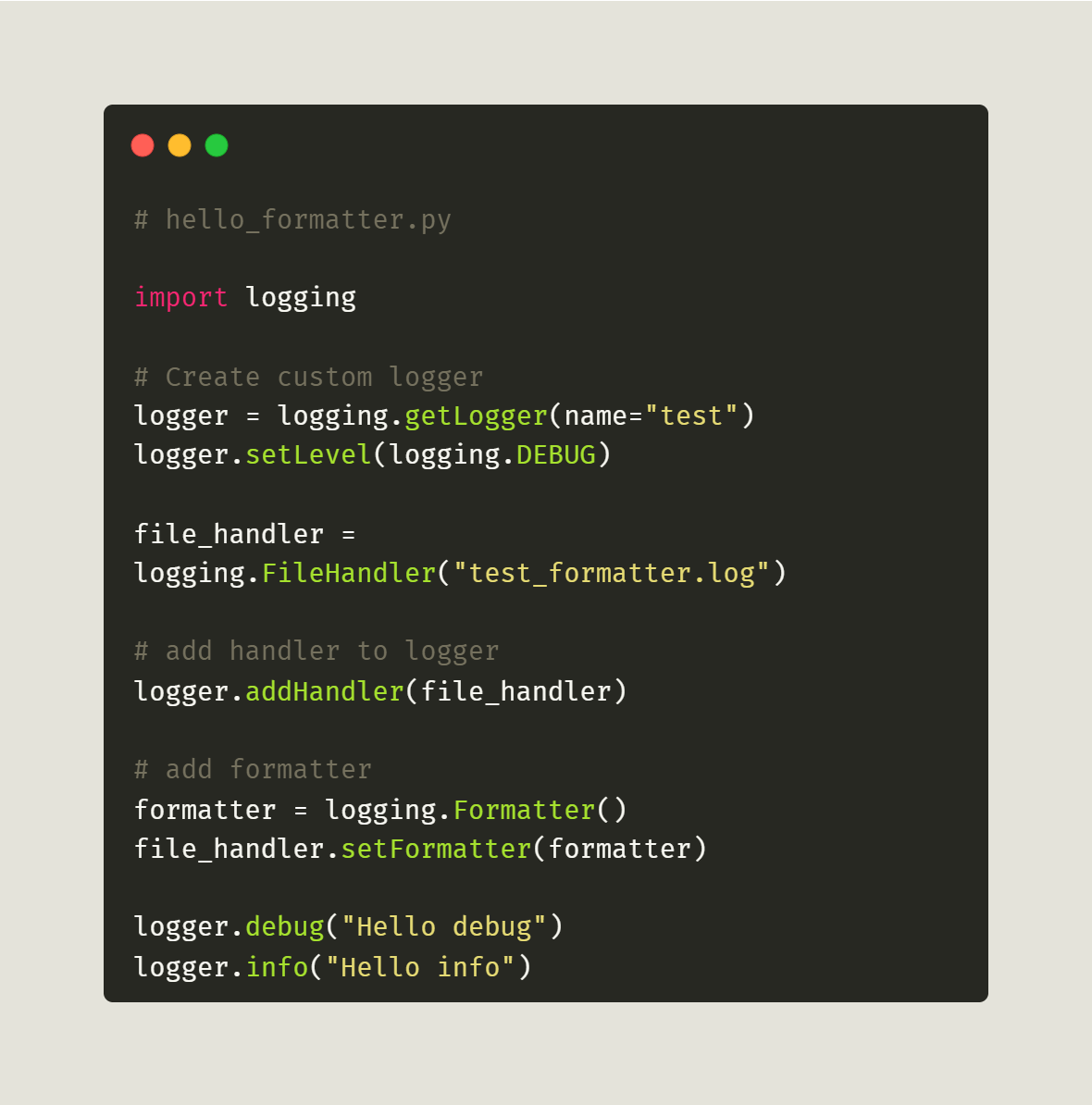
The code you want to focus on is in the last three lines before you write the log messages.
Here’s the new code all by itself:
# add formatter
formatter = logging.Formatter()
file_handler.setFormatter(formatter)
To add a Formatter to your logger, you add the formatter object to your handler object. But why not simply add it directly to the logger? You may want to have different formats for different handlers.
For example, you might want to add a very verbose formatter to log to a file and a lighter, easier-to-read formatter to stream out to the console. Logs that scroll by quickly are hard to read, and jam-packed logs are even harder.
When you run this code, you’ll get the following output:
Hello debug
Hello info
Oops! That log isn’t formatted after all! Your Formatter object doesn’t have any formatting instructions applied to it. You left it to the defaults, which means your logger will emit only the log message and nothing else.
Let’s copy the code above into a new file named log_formatting.py and then update the Formatter object with some formatting instructions:
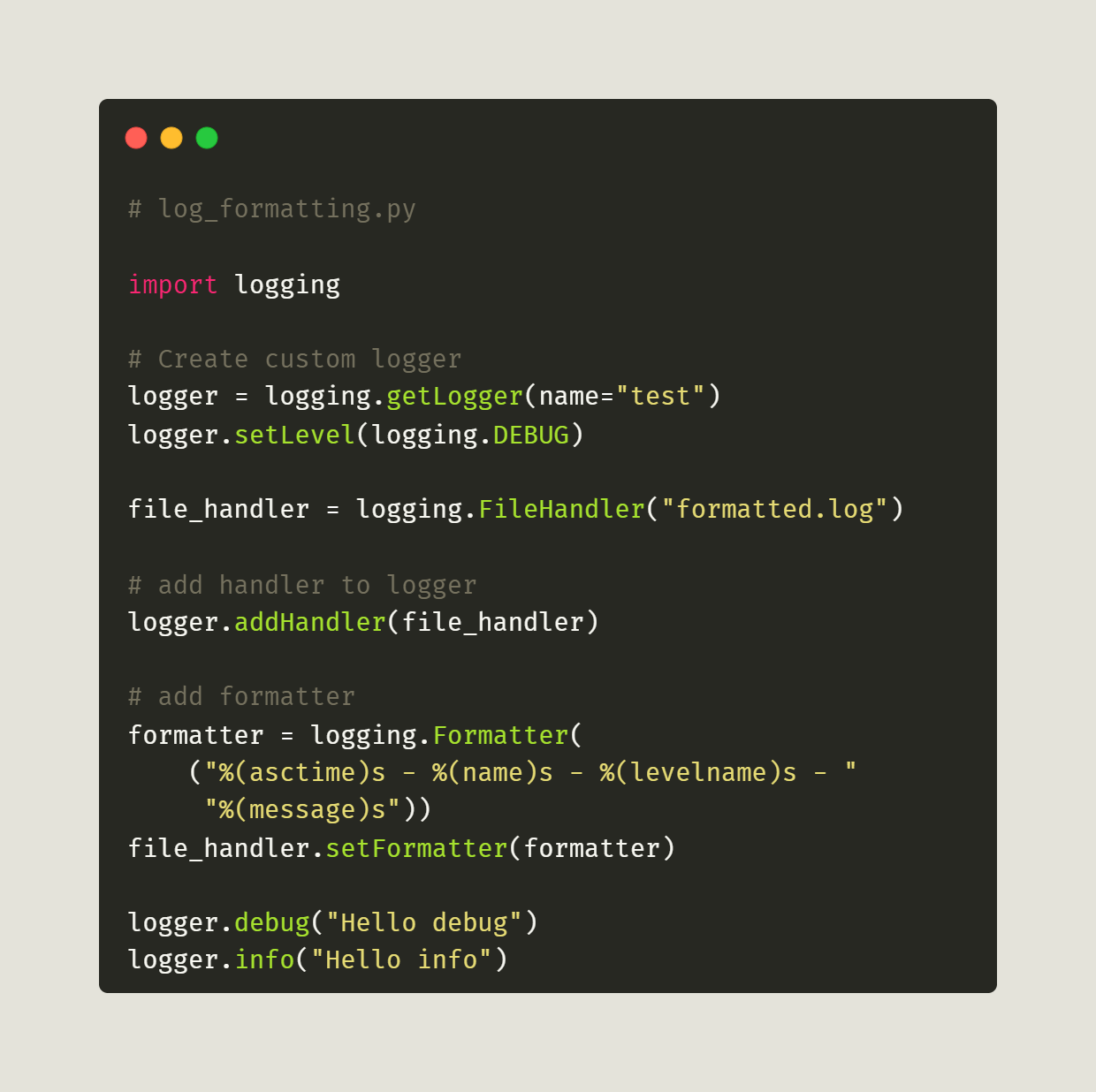
Here, you call Formatter with the string '%(asctime)s—%(name)s—% (levelname)s—%(message)s', which is a very special logging format. If you dig through the documentation or the source code, you will find that the logging module creates LogRecord objects when it does log formatting.
These LogRecord objects have many different parameters, including asctime, name, levelname, and message.
Rather than defining those right this second, try running the code and examining the output.
You should see something like this:
2024-02-07 08:29:44,734 - test - DEBUG - Hello debug
2024-02-07 08:29:44,734 - test - INFO - Hello info
Can you deduce what those parameters are doing now? If not, have no fear! You’ll dive right into LogRecords in the next section and their attributes soon after that!
LogRecords
The logger object automatically creates LogRecord instances for you every time a new string is logged. Technically, you can also manually create LogRecord objects via the makeLogRecord() method call, which is very rare.
Here is the LogRecord class signature:
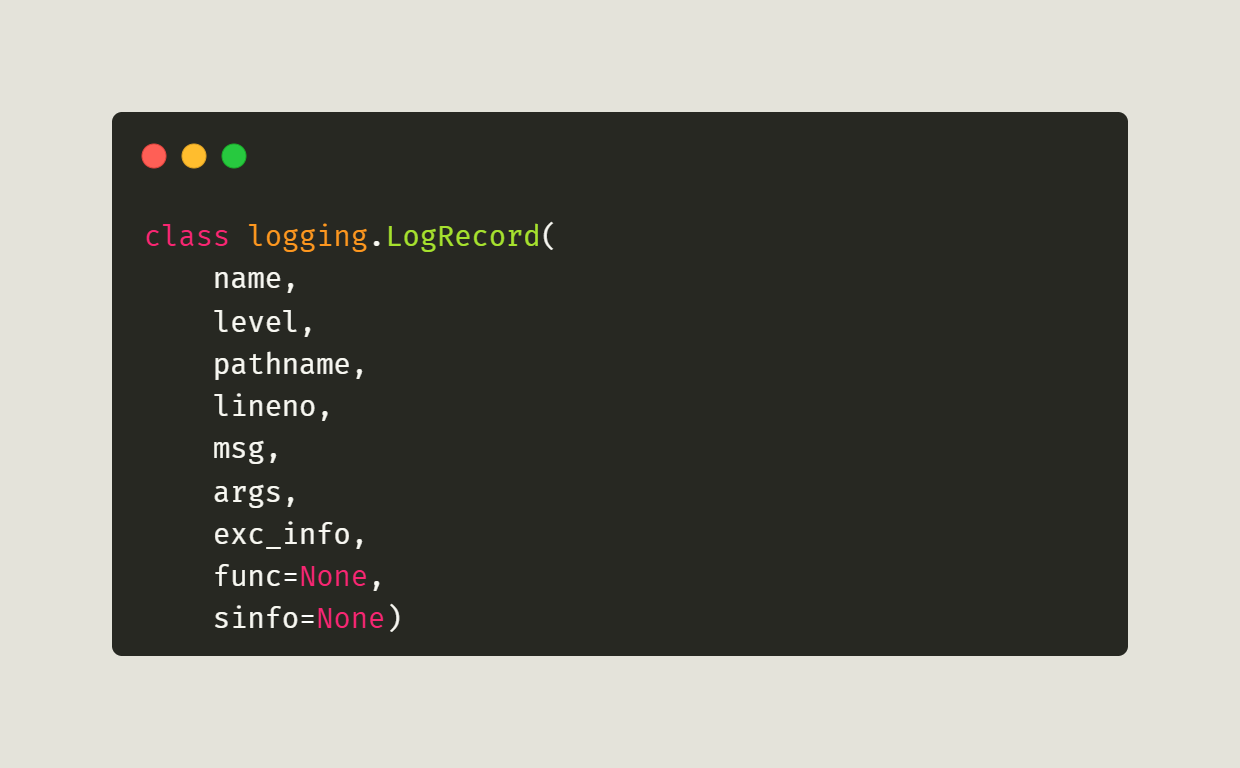
While you won’t be creating log records manually in this book, it is good to understand how to do so. Remember, the logger object automatically creates a log record when something is logged.
The logger will instantiate the LogRecord using one or more of these parameters:
name (str) - The name of the logger object
level (int) - The numeric value of the log level (i.e. 10 for DEBUG, 20 for INFO, etc)
pathname (str) - The full path to the source file where the logging call originates
lineno (int) - The line number in the source file
msg (Any) - The event description message
args (tuple or dict) - Variable data that will be merged into the
msgargument to create the event’s descriptionexc_info (tuple[type[BaseException], BaseException, types.TracebackType] | None) - The exception tuple that contains the current exception information, if any, from sys.exc_info() or None
func (str or None) - The name of the function or method that the logging call comes from
sinfo (str or None) - A text string that represents stack information
If you’d like to learn more about LogRecords, please refer to the Python documentation on the subject.
Now you’re ready to learn about the formatting you can control directly!
LogRecord Attributes
While you usually won’t create the LogRecord objects yourself, you will set their attributes via the formatting string that you pass to your Formatter object. You can set quite a few different attributes.
Here’s a listing of most of them:
asctime -
%(asctime)s- Human-readable creation time. By default, it follows this form: “2024-08-08 16:55:45,777”created -
%(created)f- The creation time of the log record as returned fromtime.time()filename -
%(filename)s- The filename part of thepathnamefuncName -
%(funcName)s- The name of the function that contains the logging calllevelname -
%(levelname)s- The text logging level of the message (’DEBUG’, ‘INFO’, ‘WARNING’, ‘ERROR’, ‘CRITICAL’)levelno -
%(levelno)s- The numeric logging level for the messagelineno -
%(lineno)d- The source’s line number where the logging call came frommessage -
%(message)s- The logged message, which is set whenFormatter.format()is calledmodule -
%(module)s- The module name (i.e. the name portion offilename)msecs -
%(msecs)d- The millisecond portion of the time when the log record is createdname -
%(name)s- The name of the logger used to log the messagepathname -
%(pathname)s- The full path of the source file where the logging came from (if available)process -
%(process)d- The process ID (if available)processName -
%(processName)s- The process name (if available)relativeCreated -
%(relativeCreated)d- The time in milliseconds when the log was created, relative to when the logging module was loadedthread -
%(thread)d- The thread ID (if available)threadName -
%(threadName)s- The thread’s name (if available)taskName -
%(taskName)s- Theasyncio.Taskname (if available)
These attributes are what you use to format your log messages. In an earlier section in this article, you saw the following line of code:
formatter = logging.Formatter(
	(”%(asctime)s - %(name)s - %(levelname)s - “
     “%(message)s”))
Here, you are creating a Formatter object that will record a human-readable timestamp of when the log was created, the name of the logger that emitted the log message, the name of the log level, and the log message itself.
When you ran that code, the log will contain messages like the following:
2024-02-07 08:29:44,734 - test - DEBUG - Hello debug
2024-02-07 08:29:44,734 - test - INFO - Hello info
The first twenty-three characters represent that human-readable timestamp. The timestamp is separated from the next piece of information by a couple of spaces and a dash. Then you get the logger’s name, “test”. If you go back to the original code, you can see the logger name getting set like this:
logger = logging.getLogger(name=”test”)The third piece of information in the log message is your log level. These two lines show you logged a DEBUG and an INFO level message. Finally, you can see the log message at the end of each line.
If you want to learn more, refer to the Python documentation about LogRecord attributes.
Let’s move on and see a couple more examples of formatting your logs!
Formatting Your Logs
The best way to learn how to do something well is through practice. In this section, you will try out several variations of the log record attribute string to format your log messages.
Open up your Python IDE or text editor and create a new file called more_log_formatting.py. Then enter the following code:
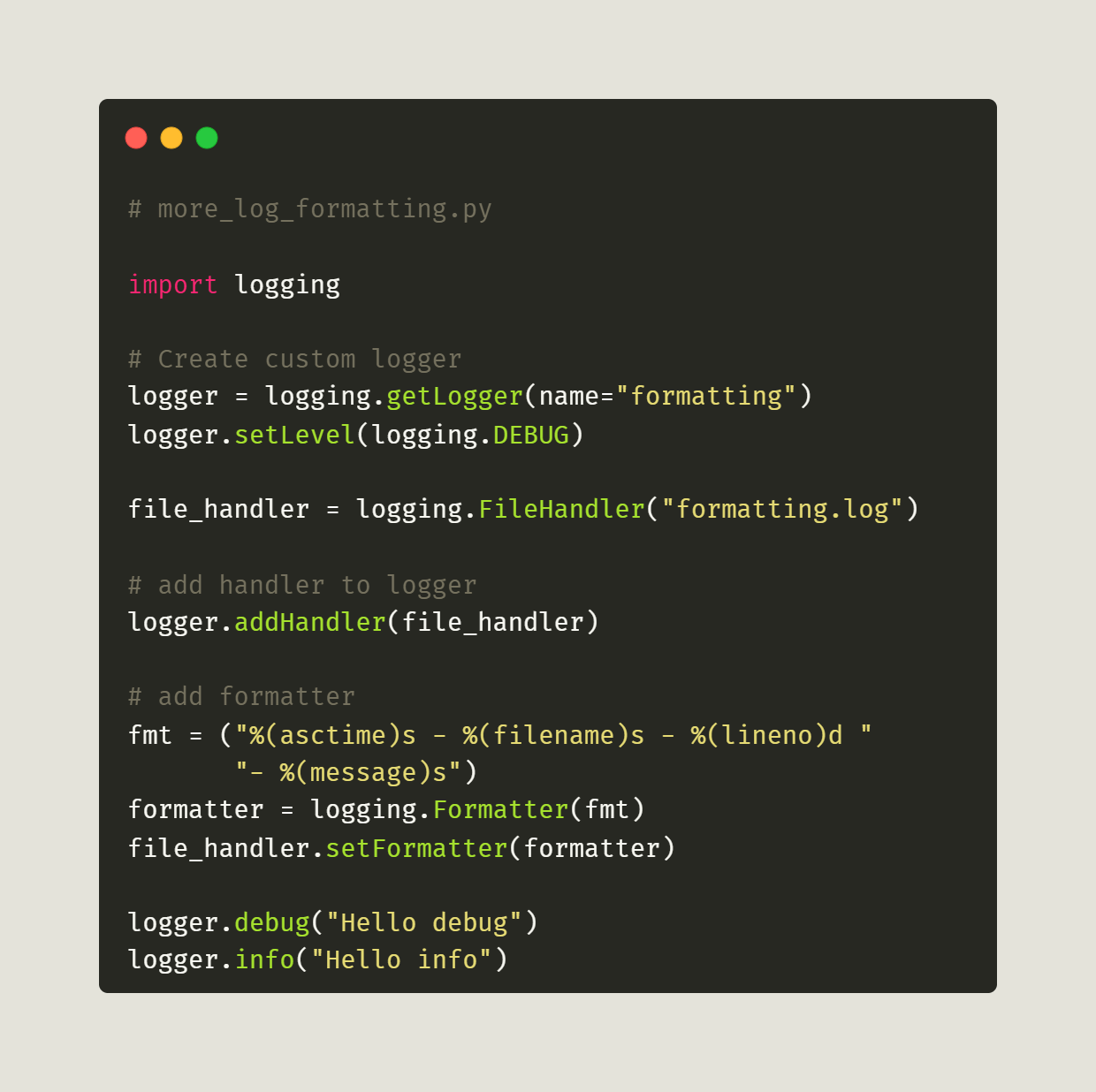
This code is virtually the same as the previous examples. What you want to focus on is the formatter string, which contains the log record attributes:
fmt = (”%(asctime)s - %(filename)s - %(lineno)d “
       “- %(message)s”)
This formatter string has two new log record attributes in it:
%(filename)s
%(lineno)d
These two log record attributes log the module filename and the line number where the log message is sent.
When you run this code and open the log file (formatting.log), you will see something like the following:
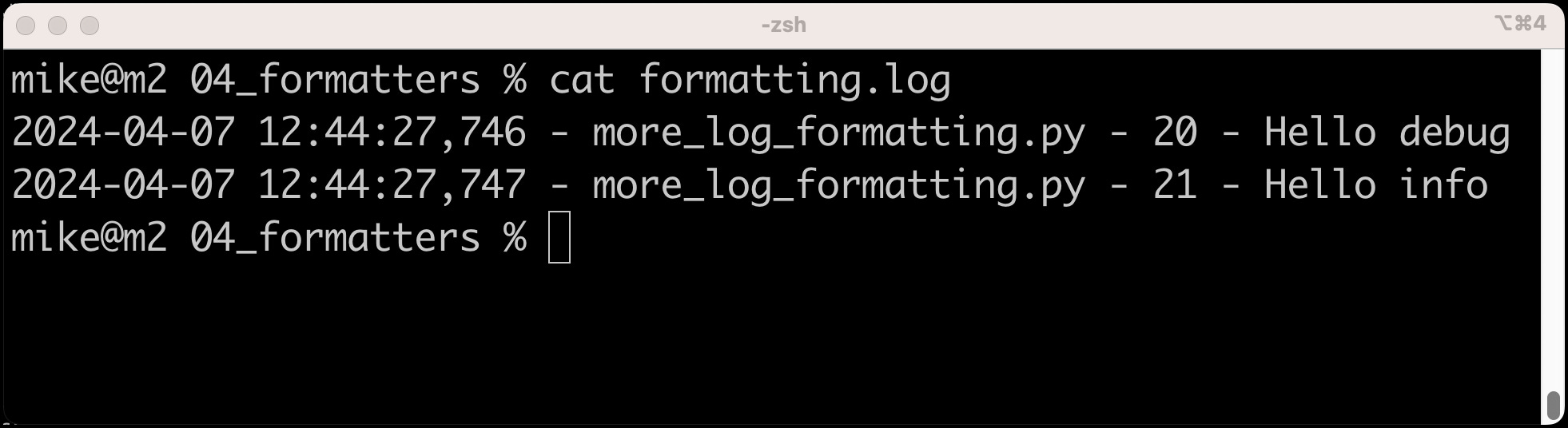
Here, you can see which file creates the log and which line emits the log messages. You could format the string better by adding explanatory text to it so that you know what those numbers are.
You could change it like this, for example:
fmt = (”%(asctime)s - %(filename)s - line number: “
       “%(lineno)d - %(message)s”)
Now, you are ready to try changing a couple more of your log record attributes. Try changing your code’s fmt variable to the following:
fmt = (”%(asctime)s - %(pathname)s - %(module)s - “
       “%(message)s”)
In this example, you swapped out the two new log record attributes for the following:
%(pathname)s
%(module)s
The pathname log attribute is the fully qualified path to the Python script that creates the log file. The module is the name portion of the filename log attribute, which means it’s the file name without the file extension.
Try running the code again and then open up the log file. You should see some new entries that look something like this:
2024-05-07 09:57:15,884 - C:\books\more_log_formatting.py - more_log_formatting - Hello debug
2024-05-07 09:57:15,884 - C:\books\more_log_formatting.py - more_log_formatting - Hello info
Here, you can see the fully qualified path to the Python script and the module name. Good job!
You can try out some of those other LogRecord attributes. Try adding some of them to your code or swapping out some of the ones in the example for others in the list above. Then, re-run the code to see how the output changes.
When you are done, you can move on to the next section, where you will learn how to change the date and time portion of the log message.
Formatting the Date and Time
Your organization may want to use a date and time format other than the default one provided by Python’s logging module. Fortunately, the Formatter class lets you change the datetime formatting via the datefmt parameter.
The datefmt parameter uses the date-time format codes that Python’s datetime module uses. If you need a refresher on how those work, check out the Python documentation.
Open up your Python editor and create a new file named date_formatting.py. Then enter the following code:
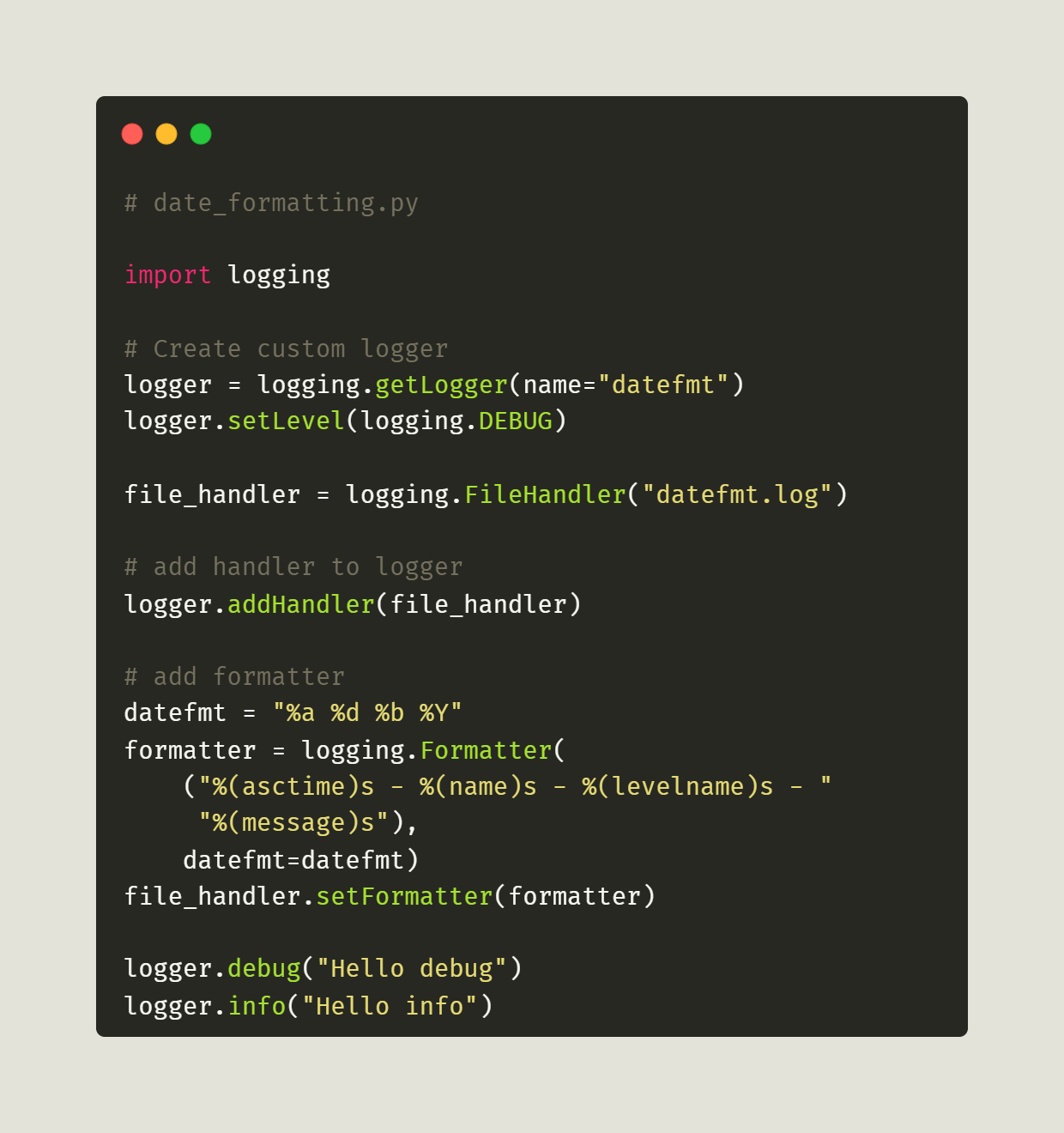
The changes you want to focus on here are contained in the following two lines of code:
datefmt = “%a %d %b %Y”
formatter = logging.Formatter(
	(”%(asctime)s - %(name)s - %(levelname)s - “
     “%(message)s”),
    datefmt=datefmt)
Yes, the date format codes are weird. Here’s the definition of what that first line means:
%a - The weekday’s abbreviated name
%d - The day of the month as a zero-padded decimal number
%b - The month’s abbreviated name
%Y - The year including the century as a decimal number
What does that look like though? Well, run the code and open up the datefmt.log file and you will see something like this:
Fri 09 Feb 2024 - datefmt - DEBUG - Hello debug
Fri 09 Feb 2024 - datefmt - INFO - Hello info
Ta-da! Isn’t that cool?
Now let’s try a different datefmt string. Here’s an example one you can try:
datefmt = “%d/%m/%y %H:%M:%S”This one prints the day/month/year and the hour, minute, and second. Swap that line in and re-run your code.
When you do so, you’re new output will look similar to the following:
09/02/24 13:28:02 - datefmt - DEBUG - Hello debug
09/02/24 13:28:02 - datefmt - INFO - Hello info
Nice! If none of these formats work for you, read up on the datetime format codes and try creating your own formatting with them.
Using Parameters
What are logging parameters? When you create a log message, you sometimes want to pass in parameters. There are several methods for formatting log messages. The recommended way is to use printf-style string substitution, which comes from C and C++.
Here is an example of using the printf-style string substitution using a Python shell or REPL session:
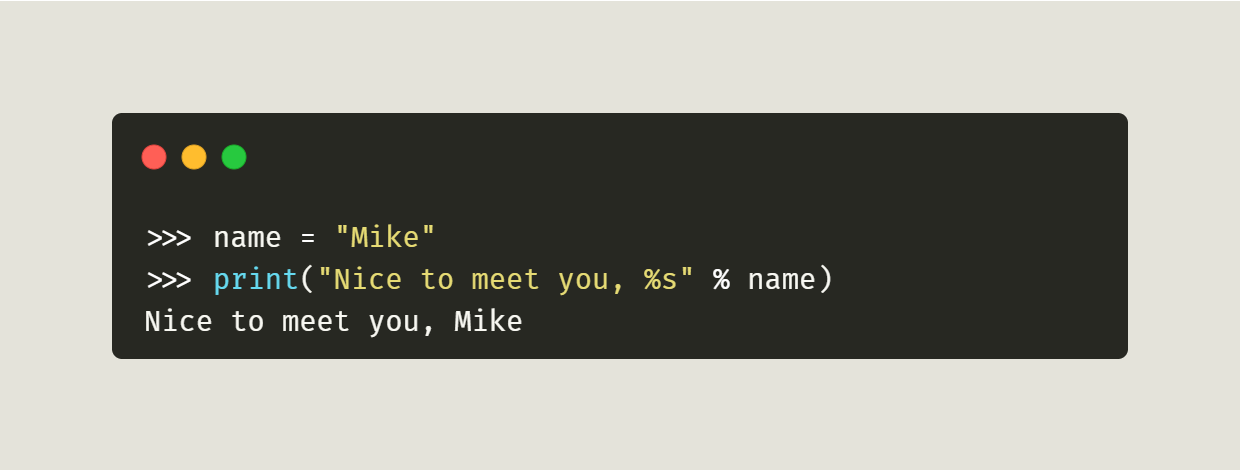
To do string substitution in this way, you need to insert a “%s” into your string to tell Python that you want to insert a string there. Then use a percent sign outside your Python string, followed by the variable name you want to insert.
The logging module is similar, but it uses a shorter version of this format. Open up your Python IDE and create a new file named using_parameters.py.
Then enter the following code:
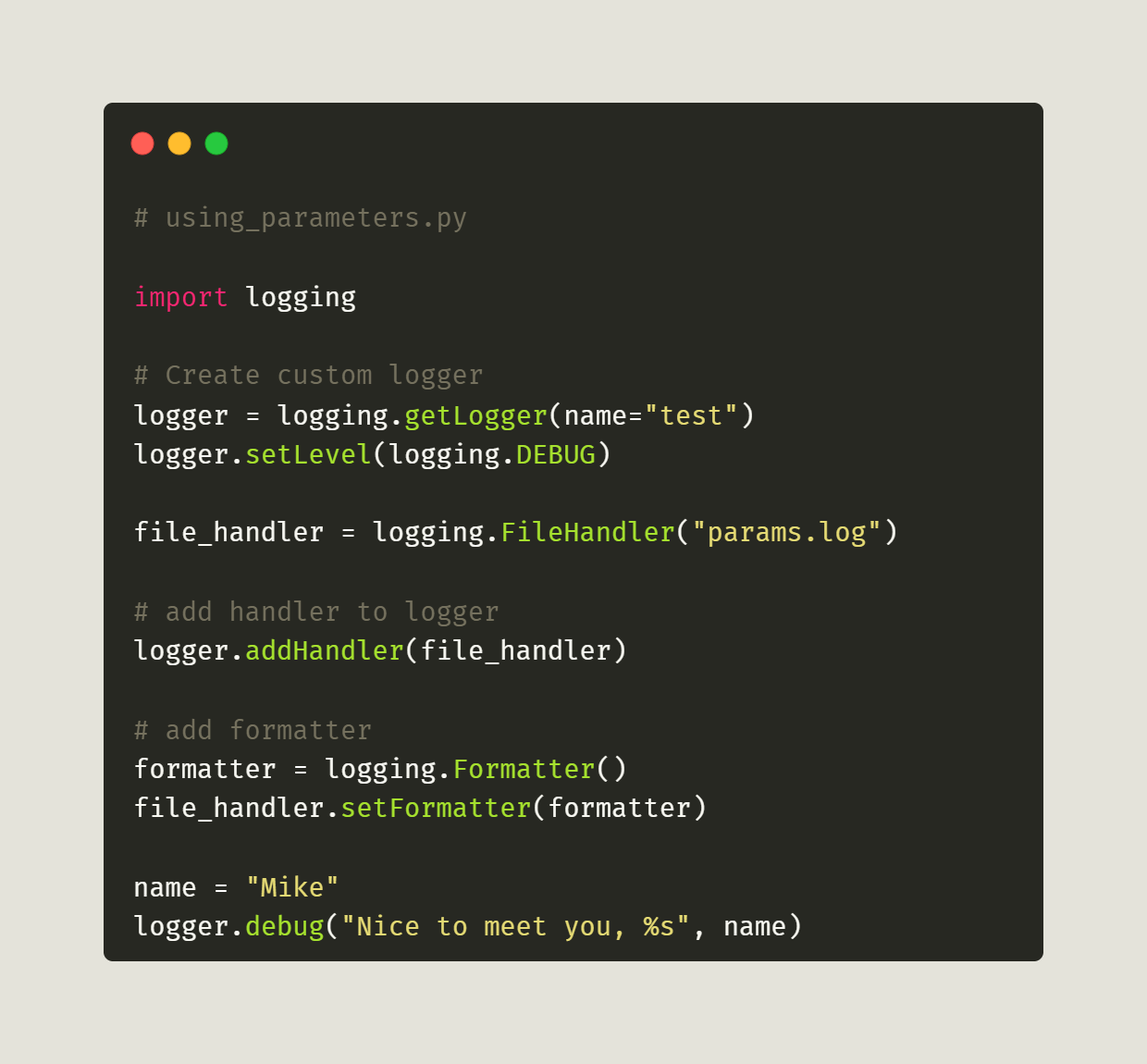
The only part you need to focus on are the last two lines. You do not need the extra percent sign between the string and the parameter(s) you are inserting.
But wait!? Why not use Python’s f-strings here instead? There are security concerns about using those. The long and short of it is that you can insert a dictionary of arbitrary size into an f-string. If you allow f-strings, they may be vulnerable to someone passing in a gigantic string that causes a Denial-of-Service type attack.
Wrapping Up
Learning how to format your logs is fundamental. You want your logs to contain enough information to track down bugs, but be small enough to read easily. Finding that balance is key.
In this article, you learned about these topics:
What is a logging formatter?
LogRecords
LogRecord attributes
Formatting your logs
Formatting the date and time
Using parameters
The next step to take is to practice the concepts in this article. Soon you’ll have some nice logs you can search through and learn from.